
Completing Waivers
Please scan or click on one of the following waivers we have available:
Snow School Lesson Release
|
Tubing Release
|
Ski Rentals
|
Snowboard Rentals
|




Alternatively, you may view all of our forms and waivers available at shop.tyrolbasin.com/forms.
At this time, we do not require a completed waiver for lift tickets.
Selecting the Desired Waiver
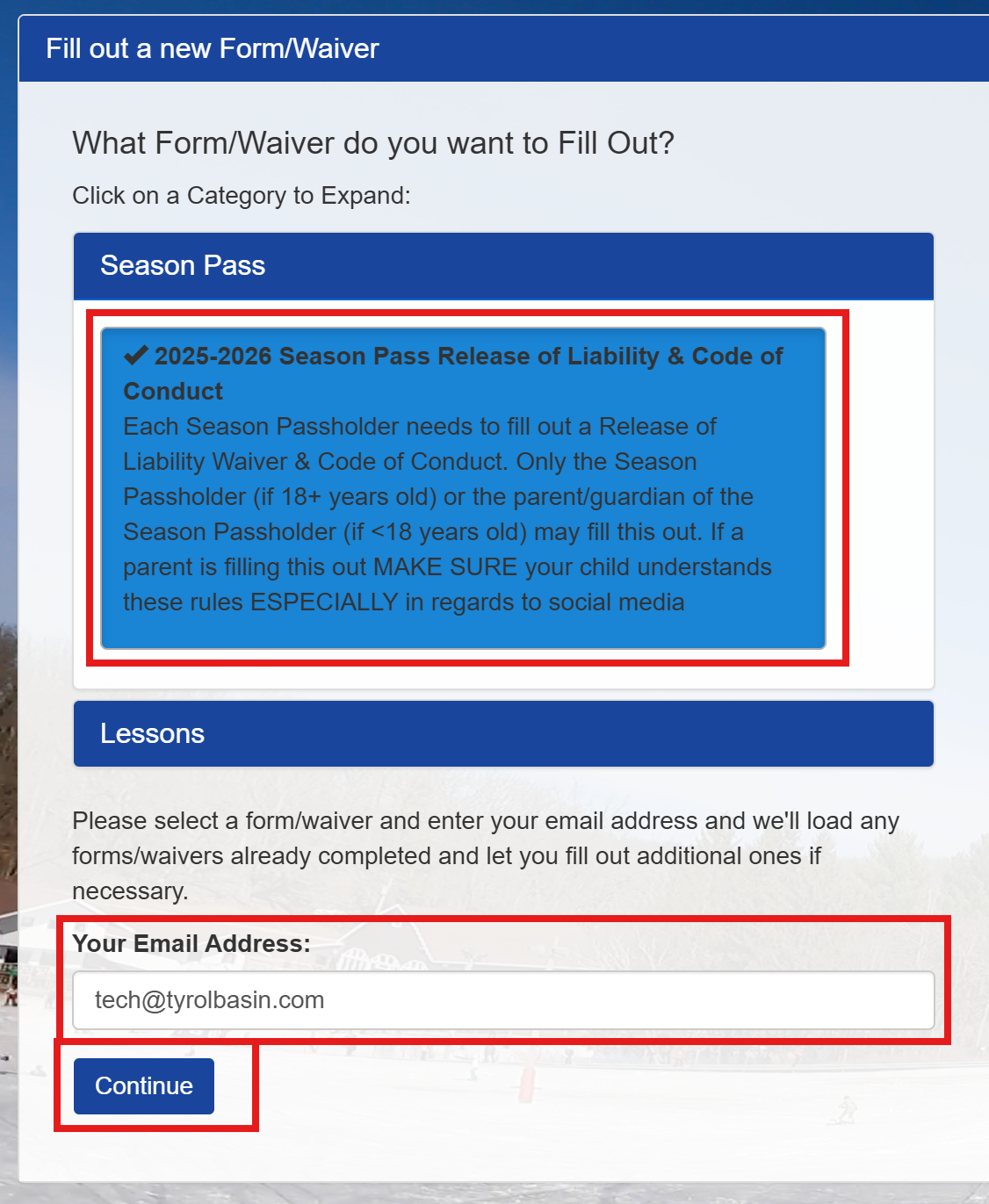
If you use a QR code or the direct link above, you will not need to select the waiver.
- Open the form/waiver group you would like to fill out, then select the waiver.
- Enter your email address
- Click Continue
Choose who the Waiver is for
After clicking Continue, you will be brought to a page that will show all of the currently signed waivers under the entered email address, and give you further options to fill out new ones.
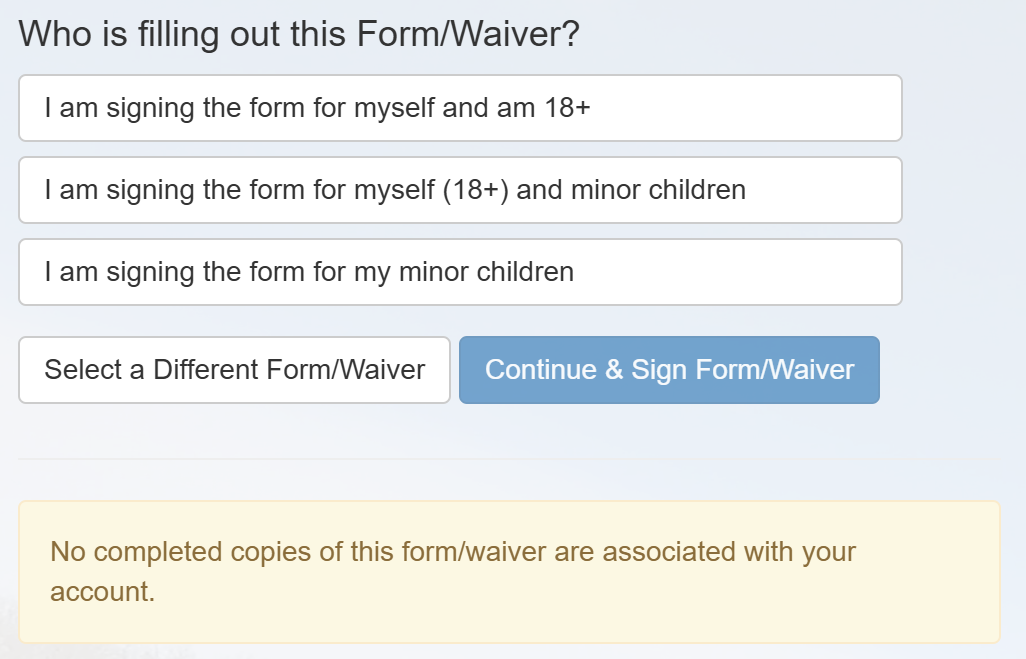
- I am signing the form for myself and am 18+
- Select this if you are over the age of 18 and are only completing the form/waiver yourself.
- I am signing the form for myself (18+) and minor children
- Select this if you are over the age of 18, need to complete the form for yourself, and also need to complete the form for your child(ren) under 18.
- I am signing the form for my minor children
- Select this if you need to fill out the form for your child(ren), but do not need to complete the waiver yourself.
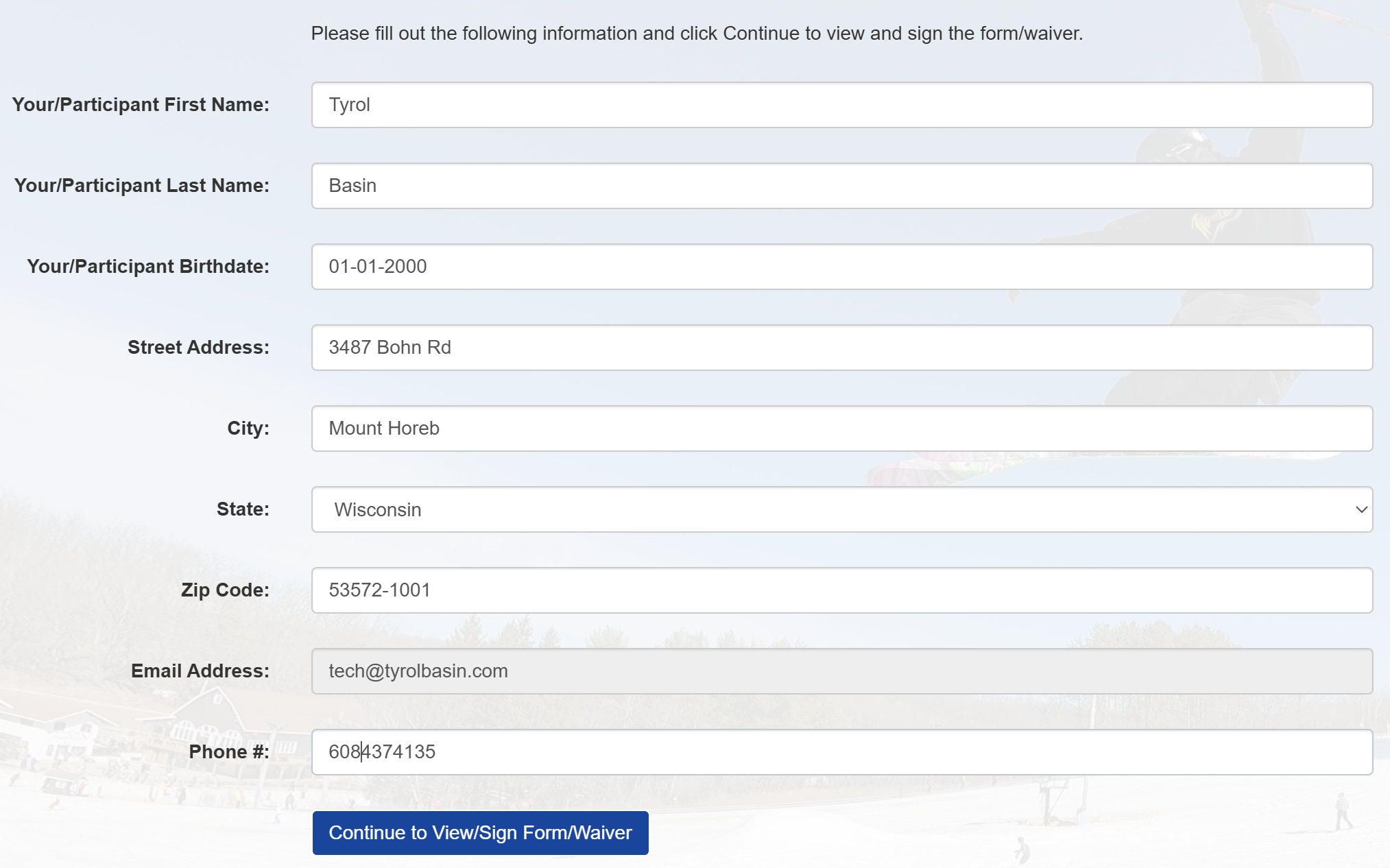
Fill out Personal Information
Fill out the requested personal information (participant name, address, email, and phone number).
Read and Sign the Waiver
Please make sure you and the participant, if filling out for a minor read and understand the waiver. Refunds will not be provided if your pass is revoked, lesson is cut short, etc. if you do not adhere to guidelines outlined in these waivers, posted across the Hill, or instructed by a staff member.
On the next screen, please read through the entire waiver. When completed, scroll down to the bottom to sign.
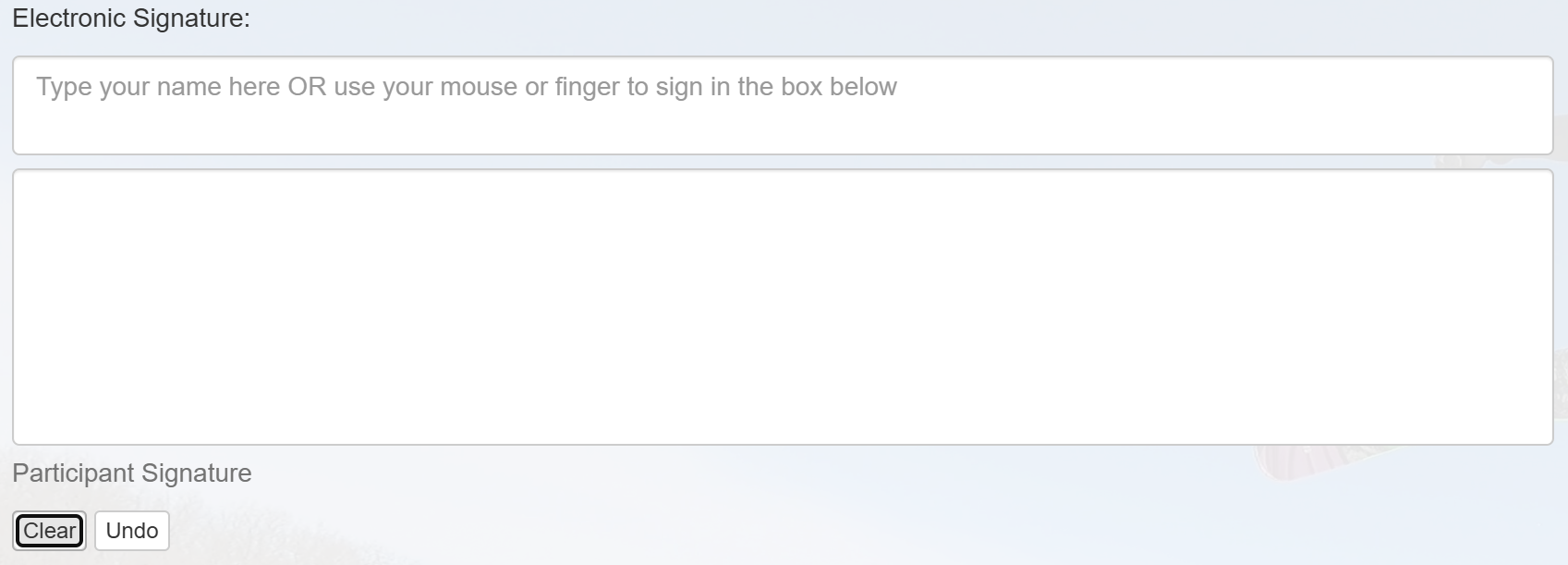
When presented with the signature boxes, you may choose to do one of the following to complete the waiver:
- Type your full name into the smaller box above the Participant Signature field. The participant signature field will show the text you type.
- Use your finger or cursor to sign in the larger Participant Signature field.
Completing the Waiver
Once you have read and signed the waiver, click the Complete Waiver button on the bottom. You will be presented with the following confirmation screen:
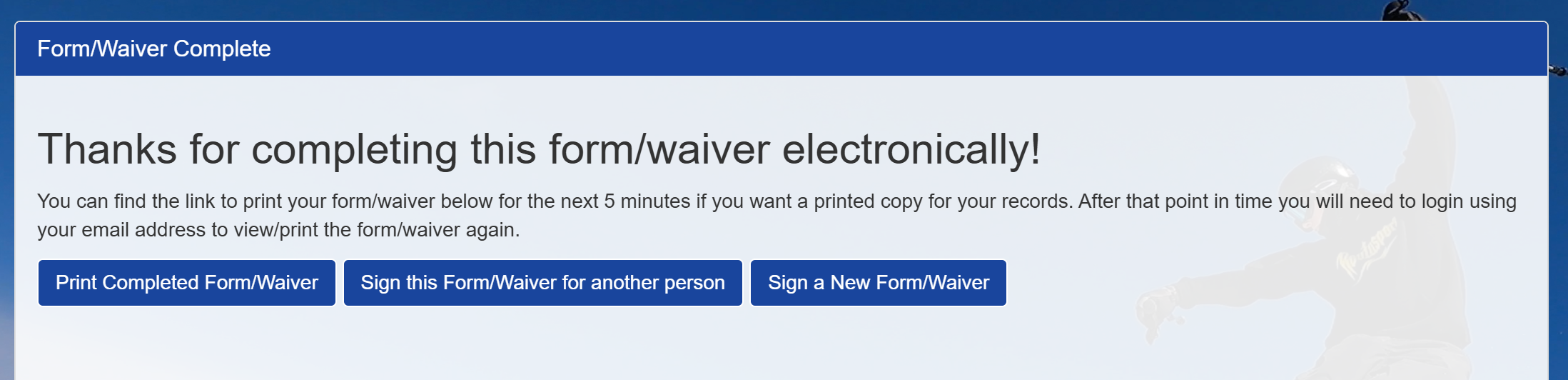
Here, you may:
- Print the completed form/waiver
- We do not need a paper copy of the waiver as we can look them up with your email address. This button is provided for your records.
- This link expires in 5 minutes. After this time, you will need to sign in again with your email address, as shown in Selecting the Desired Waiver
- Sign the form/waiver for another person
- Sign a new (not the same) form/waiver